Teams setup
Set up an app in Microsoft Azure/Entra
Go to https://entra.microsoft.com/ and log in to a Microsoft account that can set up apps.
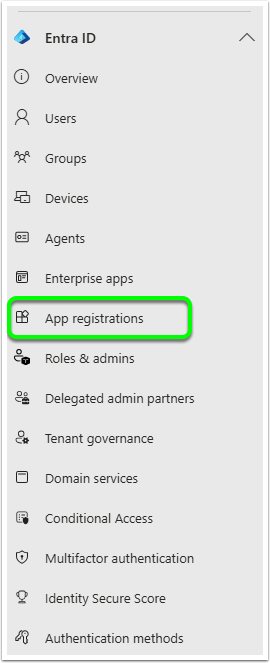
In the Entra screen, click on App Registrations
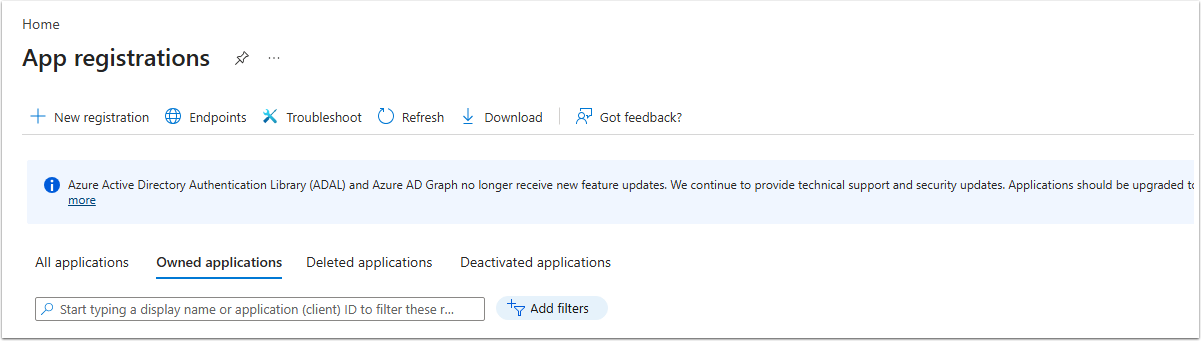
In the App Registrations screen, click on New Registration.
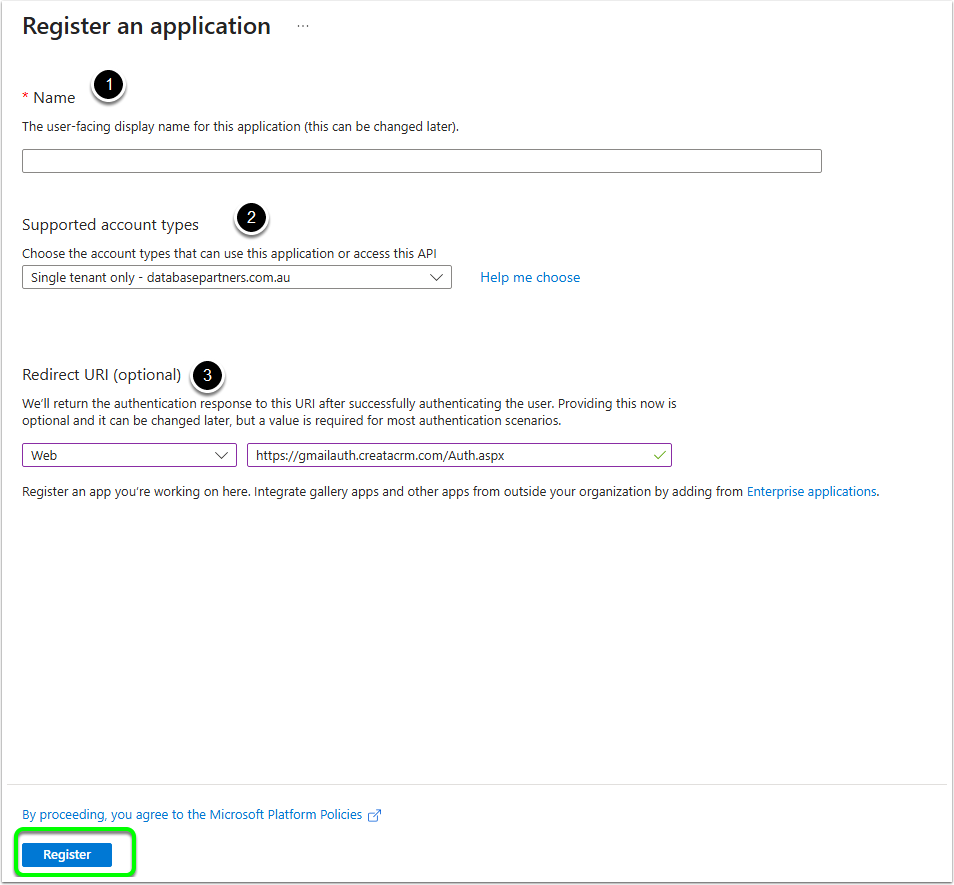
In the registration screen:
- Name - this can be whatever you like, but for your records should probably mention teams. It does NOT need to match the integration name you previousl set up in CreataCRM.
- Supported account types - set this to "Single tenant only".
- Redirect URI: In the dropdown, select Web, then in the text box enter "https://gmailauth.creatacrm.com/Auth.aspx"
Once this information has been entered, click Register at the bottom.
You will be taken to the new App's home page. In here, copy the Directory (tenant) ID and keep it safe somewhere, you will need it later to complete the relevant URLs in the Integration Settings in CreataCRM.
Also copy the Application (client) ID - this will also be entered into CreataCRM later.

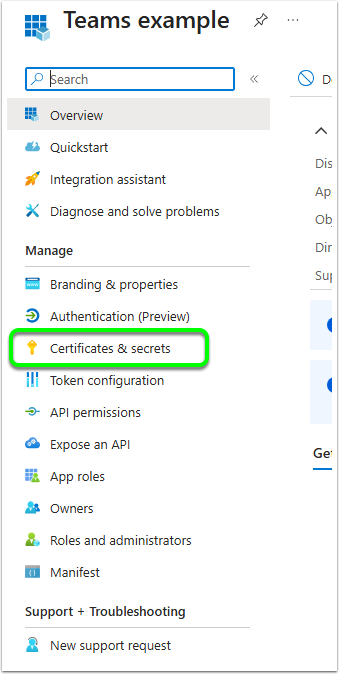
In the middle left menu, click on Certificates and Secrets.
Click on "New client secret"
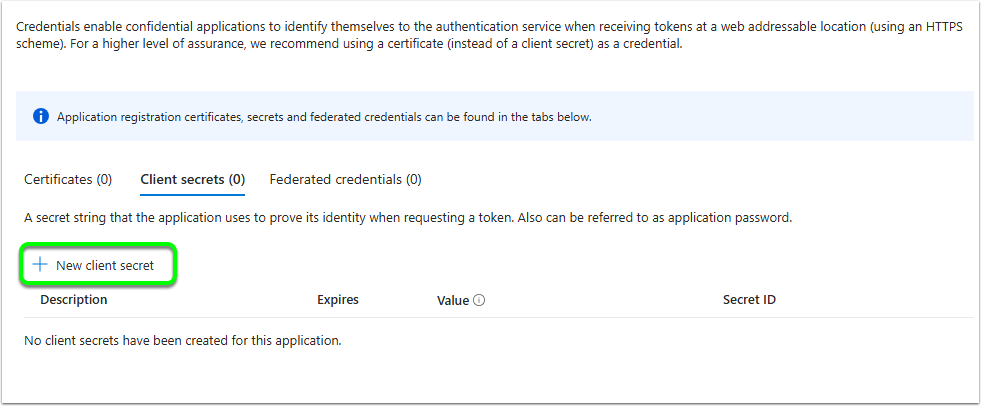
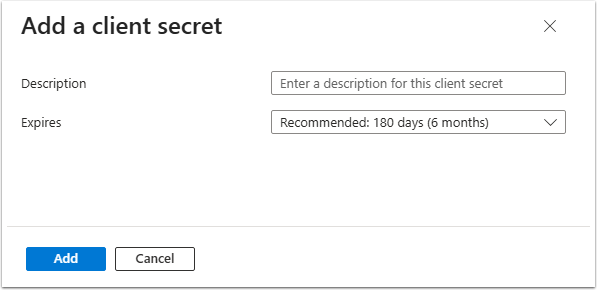
Enter a description. The maximum expiry for a client secret is 180 days.
At the bottom, click Add.
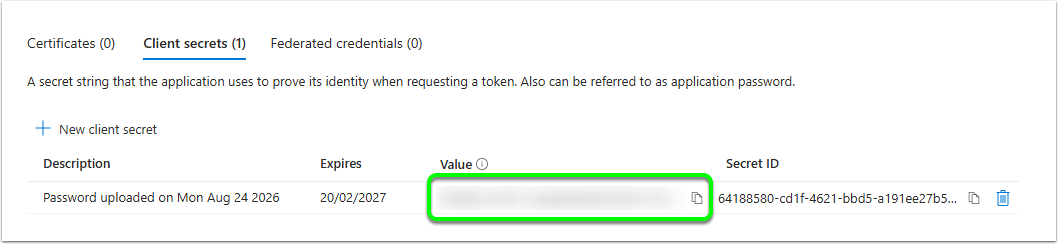
Copy the Value in this screen - this is the only time you'll be able to see the actual value of your Client Secret, after this it will always be hidden. You will enter this in CreataCRM in a later step.
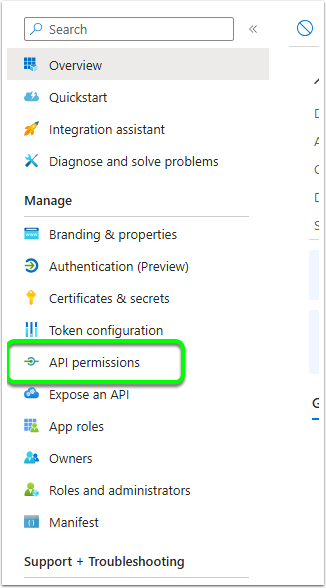
In the left menu, click on API Permissions.
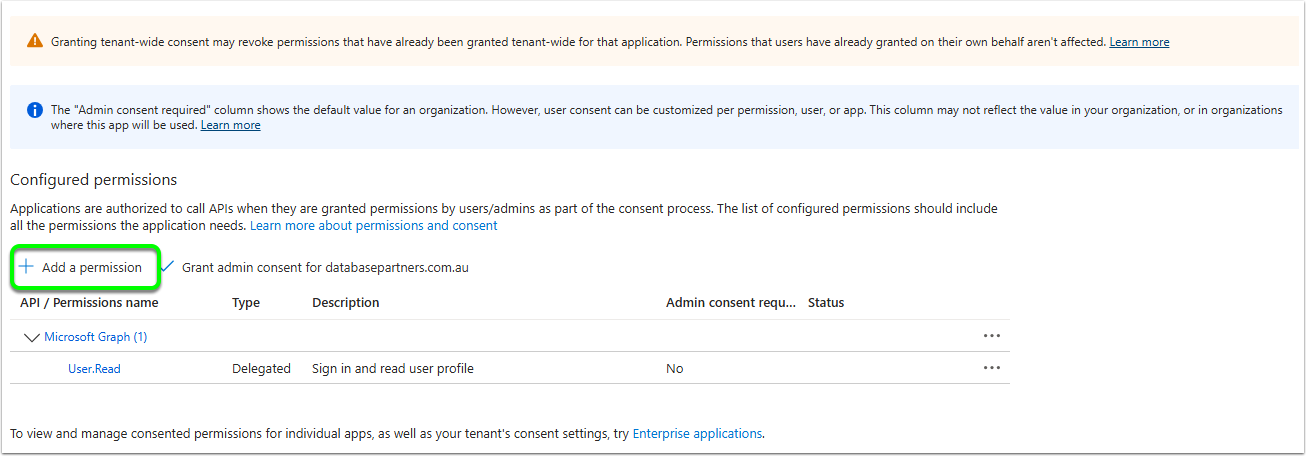
In the Permissions screen, click on Add A Permission.
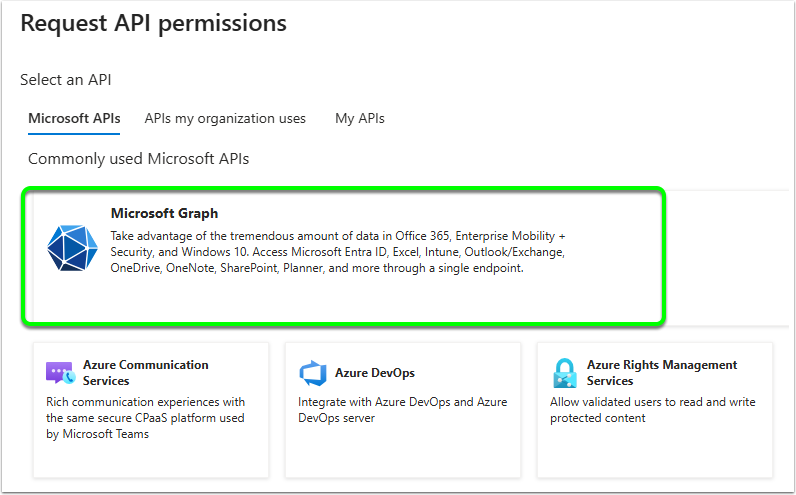
Click on Microsoft Graph APIs.
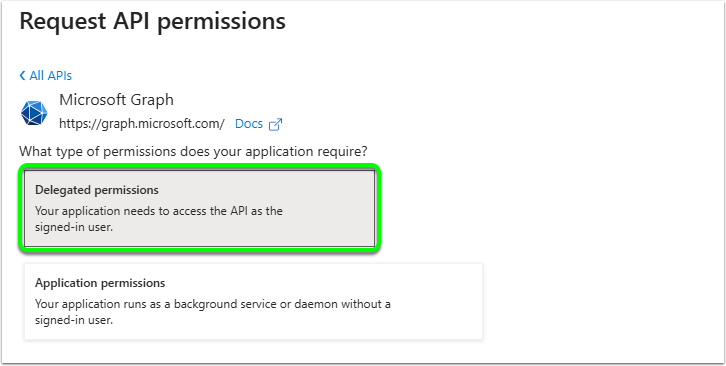
In this popup, choose Delegate permissions.
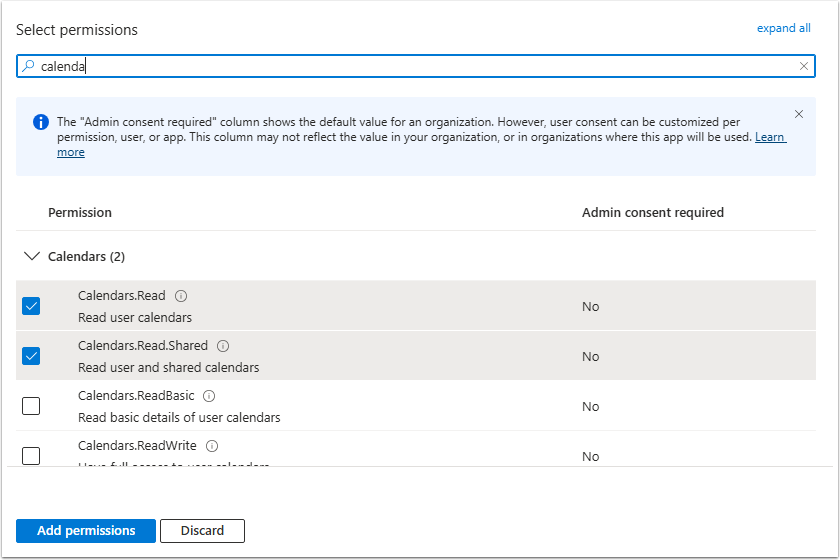
For permissions, at minimum you will need to select:
- offline_access
- user.read
- calendars.read
- calendars.read.shared
- OnlineMeetings.Read
If you want call or meeting transcripts, you will also need to add:
- CallRecordings.Read.All
- CallTranscripts.Read.All
- OnlineMeetingTranscript.Read.All
For each of these, you can search for them in the window and tick the ones you want. They will remain selected if you search for another permission. Once you have selected them all, click Add Permissions.
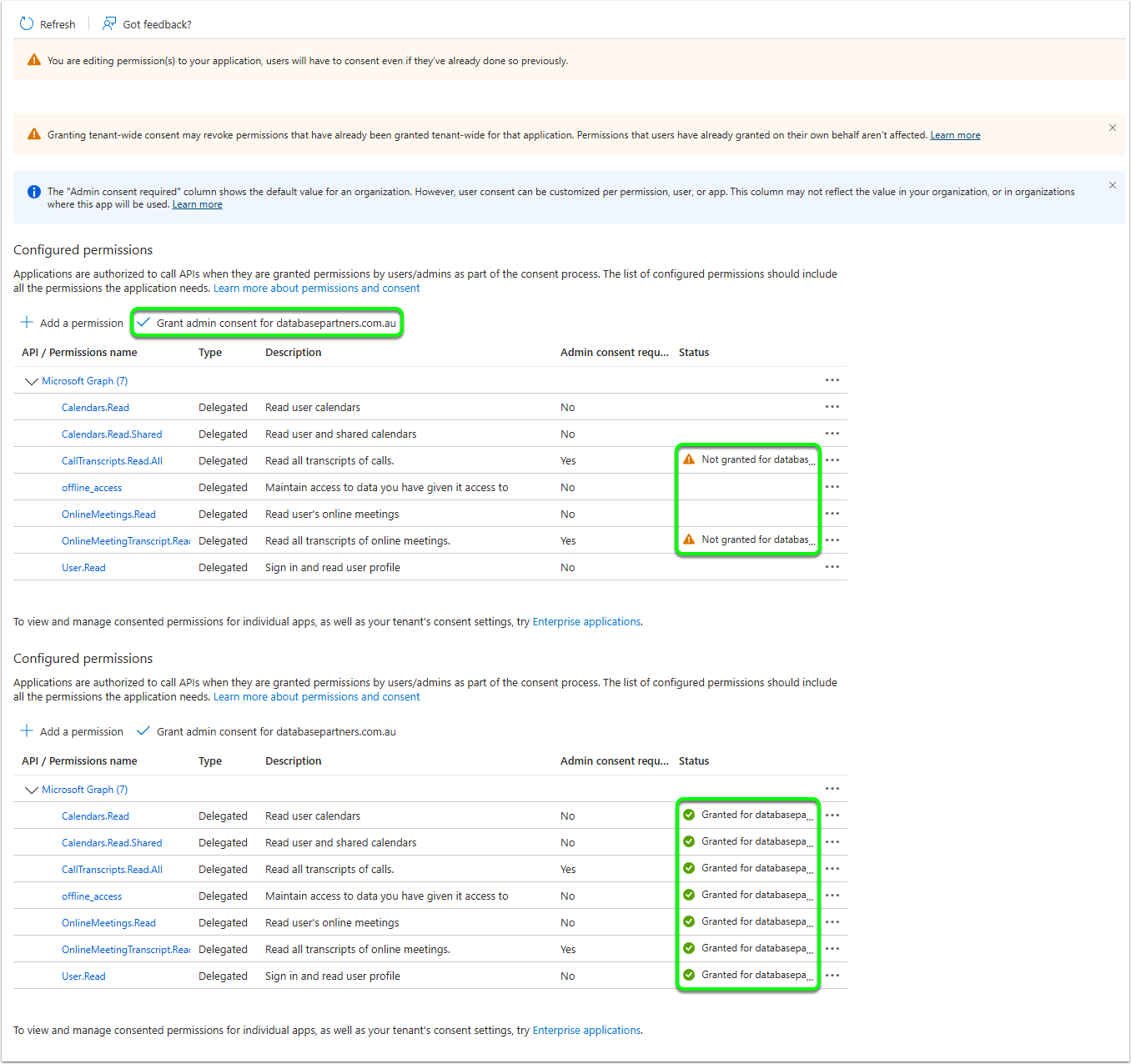
Some permissions will require admin consent - click on the Grant Admin Consent
Create teams integration in CreataCRM
In the top ment, on the right, click on the Settings cog wheel > Integrations > New Integration

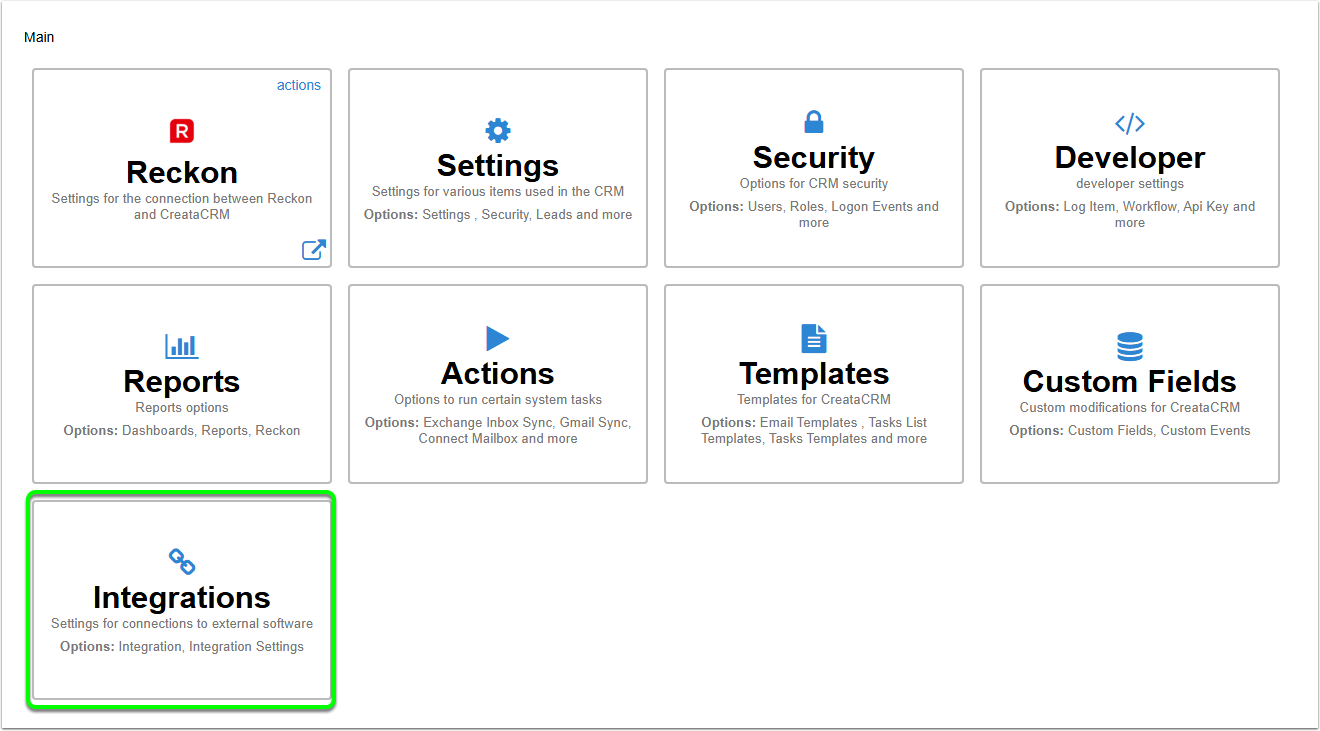
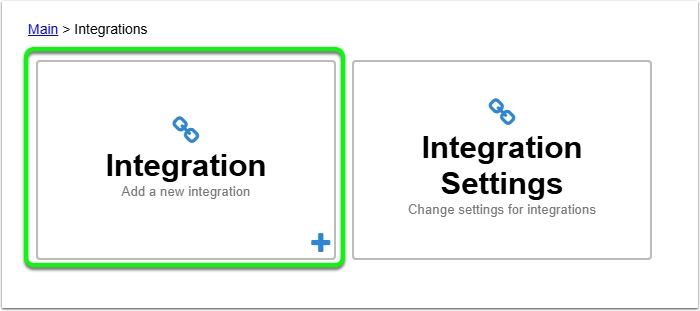
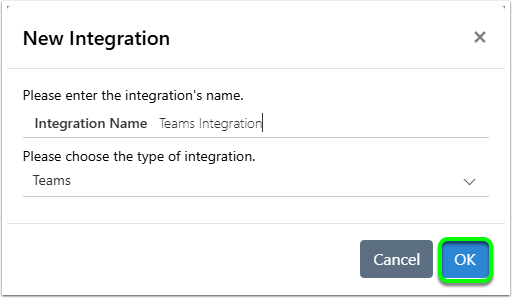
Enter a name for the integration, and choose "Teams" from the Integration Type dropdown. Click OK once these details have been entered.
You will automatically see the Settings window for the integration.
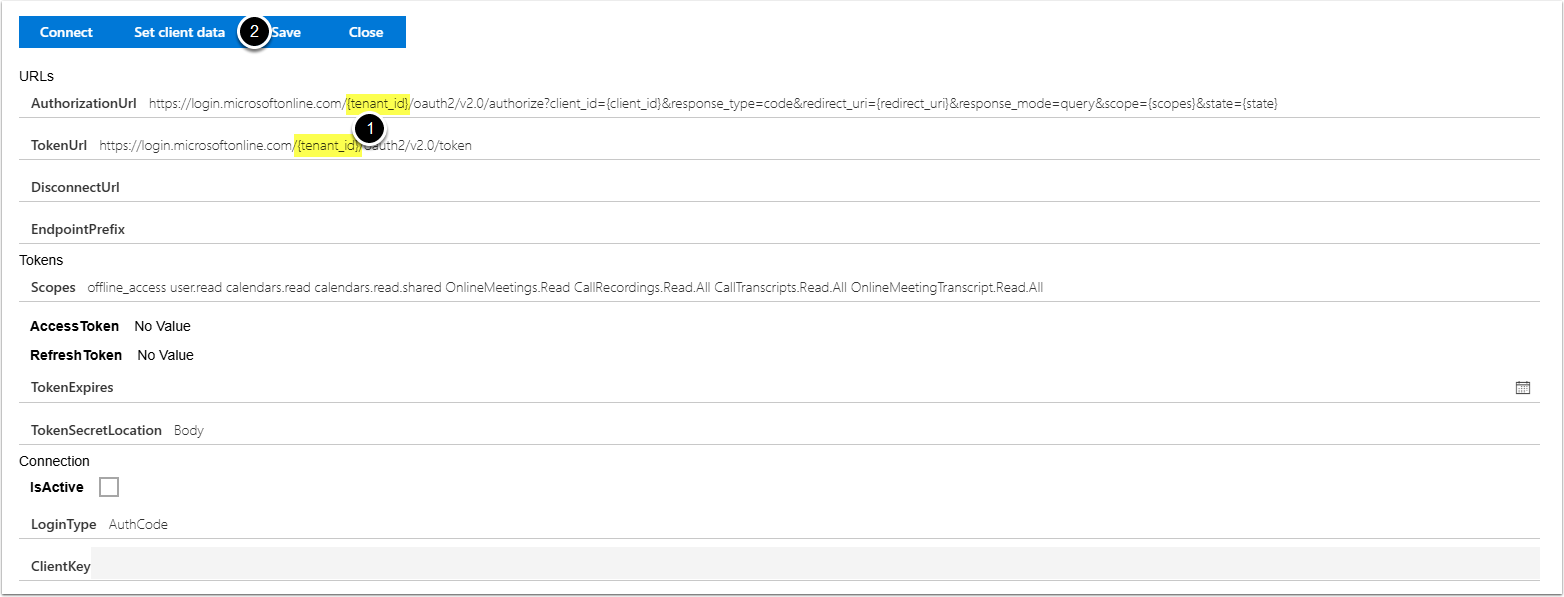
Using the Directory (tenant) ID you copied earlier, replace the {tenant_id} sections of the Authorization and Token URLs with this ID.
Click Save once these have been entered. This won't close the window.
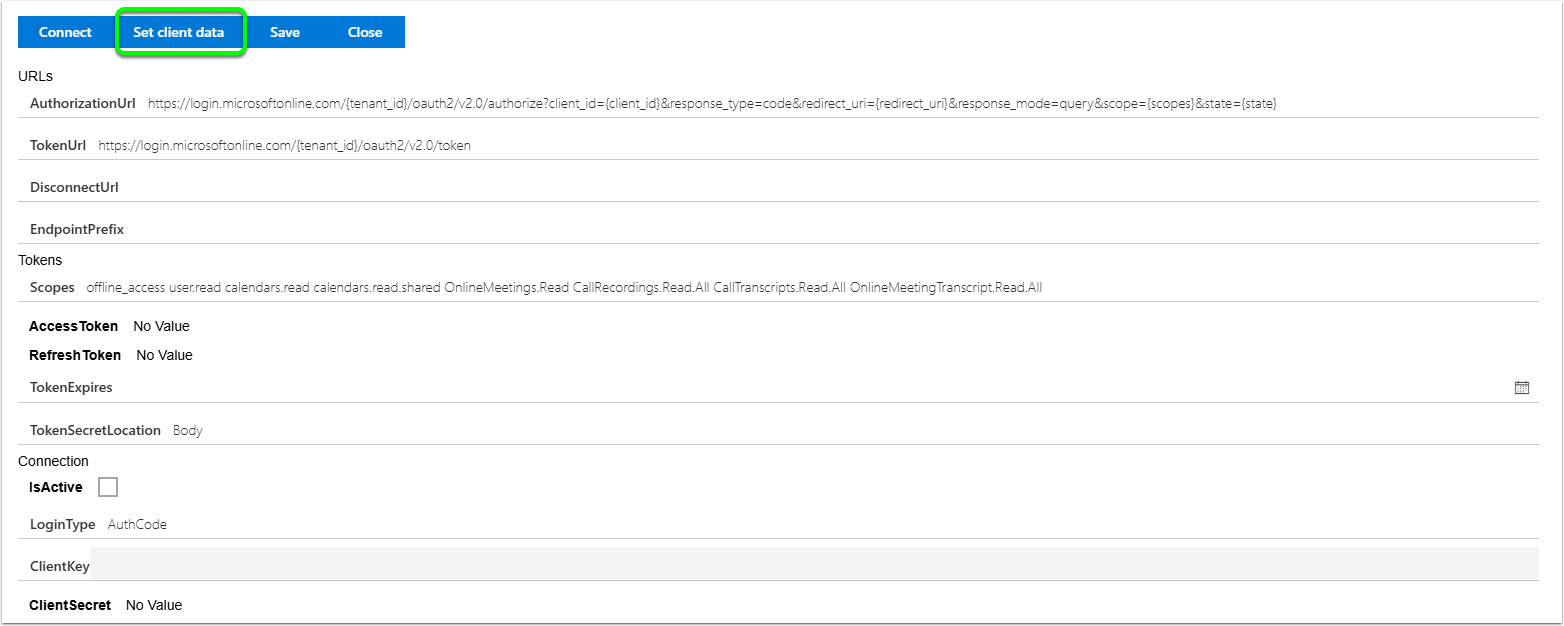
Add the client information by clicking on the "Set client data" button at the top.
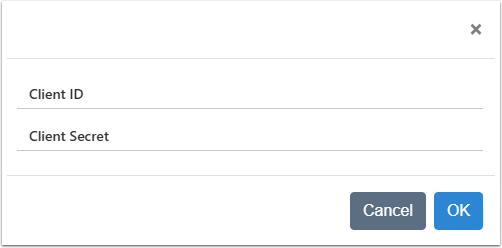
In the popup, enter the Application (client) ID in the Client ID text box, and enter your generated Client Secret into the Client Secret text box. then click OK. This will automatically save this information.
Everything should be set up, so click Connect to check that everything is correct and to receive an Access Token that the integration will use to communicate with the Teams API.
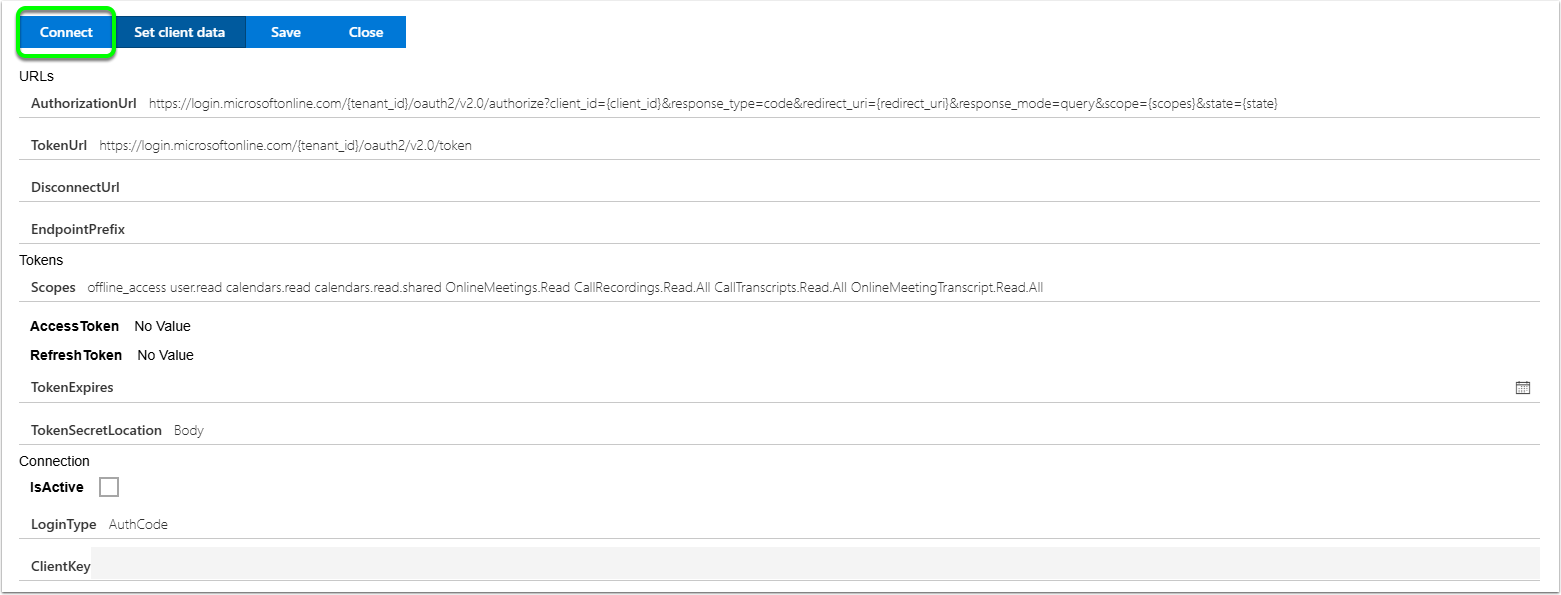
You may be asked to log in to microsoft and to confirm the access permissions you selected when setting up the app - click Allow/Confirm to continue. You'll be redirected back to CreataCRM. This means everything is set up correctly.