Convert a Quote to a Sales Order
CreataCRM allows you to create a sales order from an existing quote. This keeps the quote and the resulting order together, so you can continue processing the sale without entering the same products and customer details again.
Step 1 — Find the quote
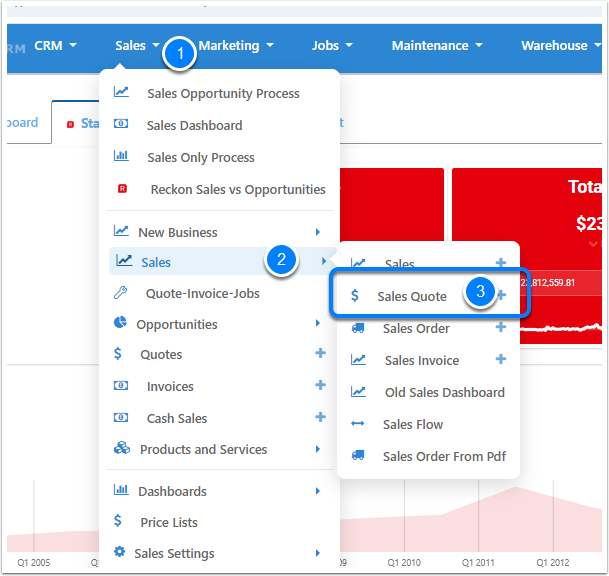
From the main menu, go to Sales → Sales → Sales Quote. Locate and open the quote you want to convert. Check that you have selected the correct customer and quote before continuing.
Step 2 — Select Create Order
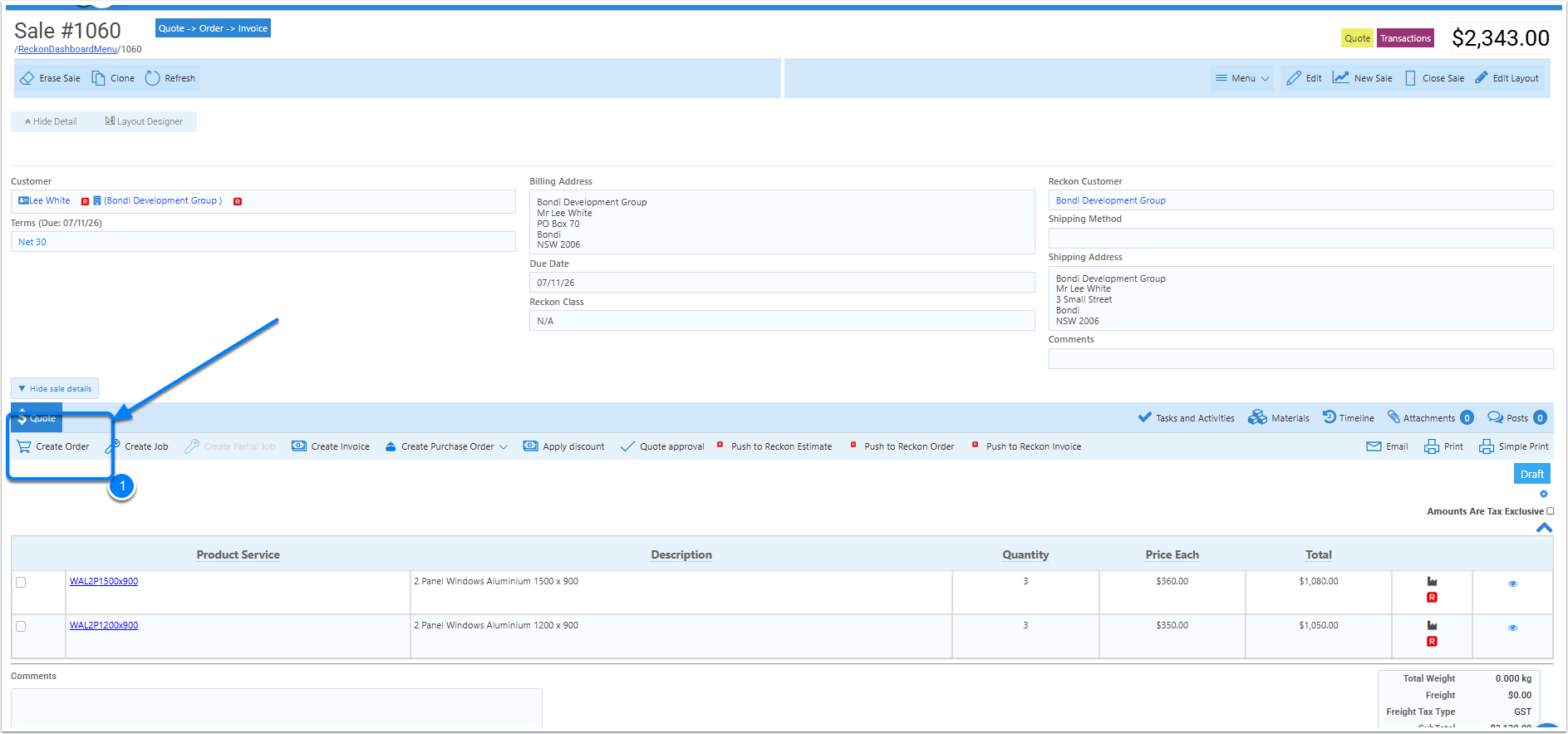
On the quote, select Create Order from the action bar. This starts the process of creating a sales order from the quote.
Step 3 — Confirm the new sales order
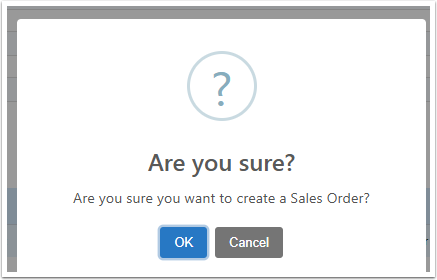
CreataCRM displays a confirmation message asking whether you want to create a Sales Order. Select OK to proceed, or Cancel to return to the quote without continuing.
Step 4 — Review the created order
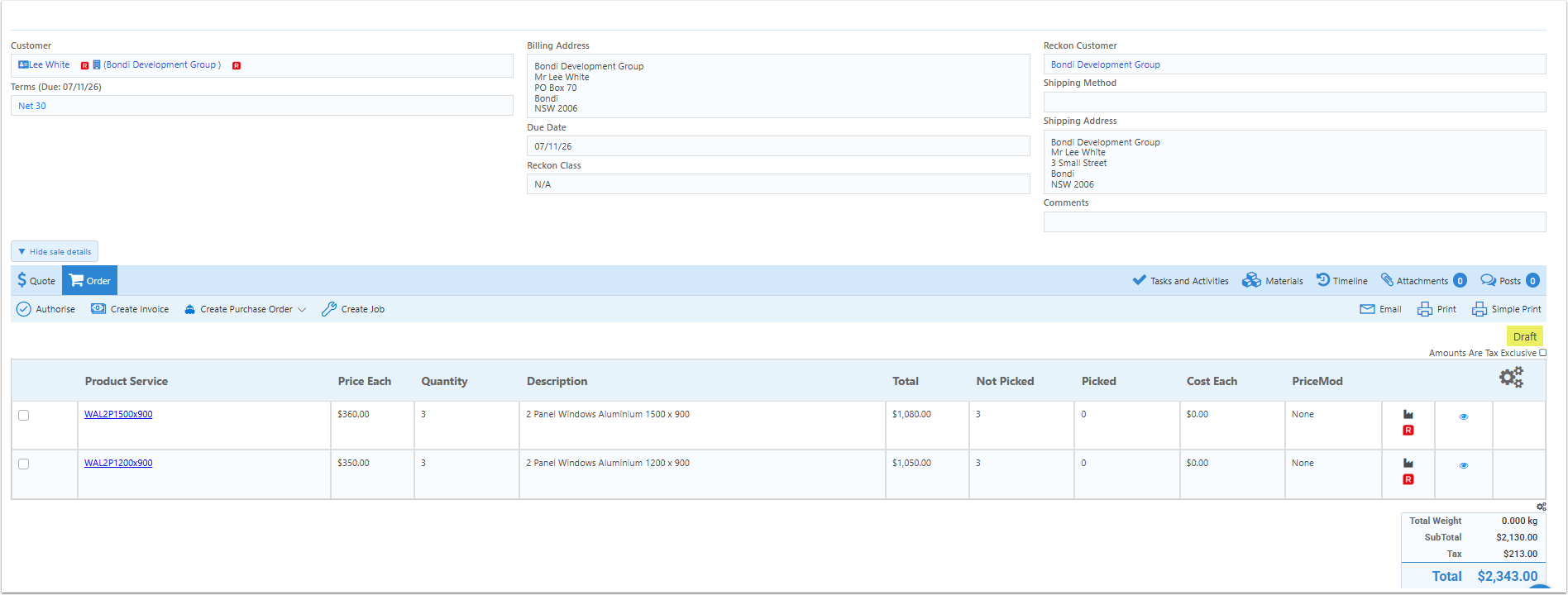
After confirming, the sales record displays an Order tab. Review the product lines, quantities, prices and totals to make sure the new order contains the expected information. The screenshot shows the order in Draft status, with actions including Authorise and Create Invoice available for subsequent processing.
Next steps
Once you have reviewed the sales order, continue with your organisation's normal order processing workflow. Depending on your configuration, this may include authorising the order, fulfilling the products or creating an invoice. These are separate actions; creating the order does not automatically invoice the customer.
Note: Some CreataCRM versions or configurations may show a more detailed Quote To Order Options screen for selecting lines and assigning warehouses. That workflow should be documented separately, including any warehouse validation messages.