Start faster with curated automations for common business activities.

Automate Your Business with CreataCRM
Spend less time on repetitive tasks and more time growing your business. CreataCRM helps you automate customer follow-ups, sales processes, job updates, inventory alerts and everyday administration.
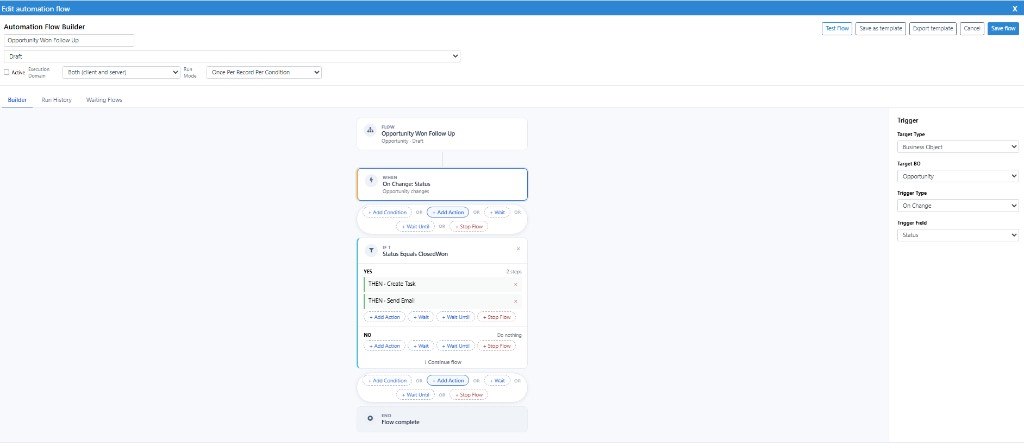
Visual Workflow Designer — click to enlarge
Start faster with curated automations for common business activities.
Build custom processes with the Workflow Designer — no coding required.
Connect leads, sales, jobs, finance and inventory in one platform.
Eight complete processes from the template gallery. Each one connects several actions, from the moment work arrives through to the person who needs to act. Browse all 32 templates in the gallery below.
A trade-show form becomes a company, a contact and a lead, with a salesperson, a follow-up and a welcome ready to send.
Outcome. Show enquiries are assigned before the team is back in the office.
The website form opens a lead, assigns your salesperson and prepares a thank-you for the same day.
Outcome. No one retypes the form into the CRM.
A new customer gets an account manager if they need one, a welcome task, an email ready to send and a New Customer tag.
Outcome. New customers are not left as a bare record.
Marking the job complete prepares the customer confirmation, creates an invoicing task and alerts accounts.
Outcome. Completion, the customer message and the invoice check start from one status change.
Optional, and off unless you enable them: text the customer, alert the job owner, tag the job.
Each morning, open opportunities that have sat too long get a follow-up task and an in-app alert for the owner.
Outcome. The same deal is raised once while it stays stalled, not every morning.
Optional: also alert the sales manager.
Each morning, customers over your balance and over your oldest-invoice age are tagged Credit Hold.
Outcome. Credit risk is raised from two rules together. The customer is not emailed.
Choose CreataCRM, Xero, Reckon or MYOB. Only that version is installed.
Each morning, CreataCRM, MYOB or Reckon products under their reorder level get a review task and a purchasing alert.
Outcome. Nothing is ordered automatically, and Xero is not included.
Optional: tag the product Low Stock.
Once an invoice is marked paid, the overdue tag can come off, matching collection tasks can close, and the owner is alerted.
Outcome. This reacts after payment is recorded. It does not collect the money.
Optional, and off by default: prepare a thank-you email.
Templates install a ready process. You still choose the people, timings and, where it applies, the accounting or inventory connection.
Most templates ask who should be notified, which status applies, and how many days to wait. Some actions are optional and stay off until you enable them.
Email and text steps are prepared, not delivered. Turn on live sending, and enable live email in Automation settings, before customers receive them.
A team alert is an in-app notification for the role or person you choose. It does not also email that person.
Morning, Monday and monthly checks use Australia/Sydney time. The same record is not tasked again while that situation stays the same. These templates do not raise purchase orders or collect payments.
Accounts templates install one version for CreataCRM, Xero, Reckon or MYOB. Stock templates use figures already synchronised into CreataCRM. Assembly shortages and the provider low-stock alert are not available for Xero. Lapsed-customer and high-value recognition use Xero, Reckon or MYOB only.
Browse all 32 templates across eight categories. Search by name or description, filter by the part of the business you care about, and open any template to see what starts it and what happens next.
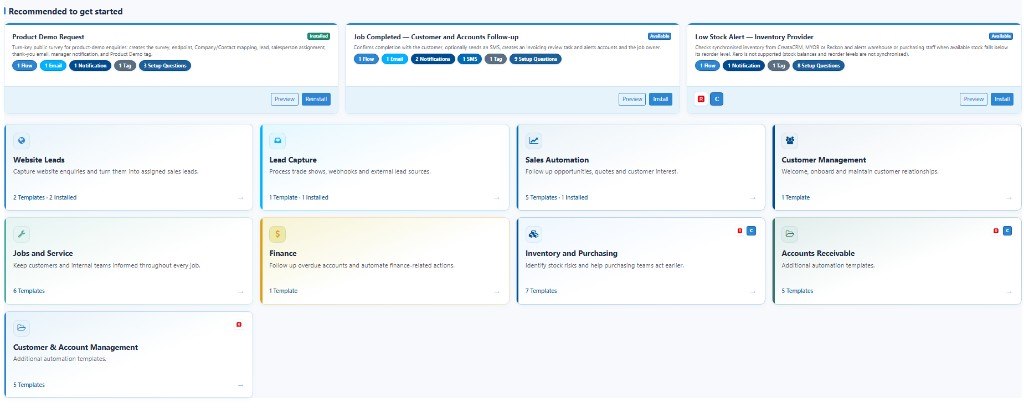
Showing 32 of 32 templates
Turns a website demo request into an assigned lead, with a follow-up task, a thank-you email ready to send, a staff alert, and a Product Demo tag.
Captures a general website enquiry, assigns an owner, and prepares an acknowledgement, a same-day review task, a team alert, and a Website Enquiry tag.
Turns a trade-show enquiry into a company, contact, and assigned lead, with a follow-up task, a welcome email, a salesperson alert, and a tracking tag.
When a deal is marked won, prepares a thank-you, creates an operations handover task, alerts that team, and tags the customer.
On a new lead, fills an empty owner, creates a follow-up task, alerts that person, and prepares a personal introduction email.
When an opportunity reaches the value you set, tags it, creates a review task, and alerts the sales manager. No customer email.
Each morning, finds open opportunities that have sat too long, creates a follow-up for the owner, and can also alert their manager.
When a deal is lost, tags it, schedules a revisit, alerts the owner, and can prepare a polite keep-in-touch email.
When a customer record is created, adds a welcome task for the owner, due the next day. No email is sent.
On a new customer, fills an empty account manager, creates a welcome task, prepares a welcome email, alerts that manager, and tags the customer.
Each Monday, finds Xero, Reckon, or MYOB customers who used to buy but have gone quiet, then creates a win-back task and tags them.
Once a month, tags high-spending Xero, Reckon, or MYOB customers, assigns an account manager, alerts sales, and creates a review task.
Each morning, finds customers still not onboarded after the days you set, creates a task for the owner, and alerts the account manager.
On the anniversary of the customer’s create date, prepares a thank-you, alerts the account manager, and can add a follow-up task.
When a job reaches the finished status you choose, prepares a short email asking the customer how the work went.
When a job is finished, prepares a customer confirmation, creates an invoicing task, alerts accounts, and can text the customer or tag the job.
When a technician is assigned, alerts them, creates their work task from the scheduled start, and prepares a scheduling email for the customer.
When work starts, alerts the office and prepares a text for the customer. An email and a tag are optional.
When a job is waiting on the customer, prepares a request for information, creates a delayed follow-up, and alerts the owner.
Each morning, finds jobs still open after their scheduled finish, creates a review task, and alerts the owner and a manager.
Each morning, finds invoices overdue by the days you set, prepares a reminder, alerts accounts, and creates a follow-up task.
Each morning, finds customers with several overdue invoices, alerts accounts, creates a collection task, and tags the account. No customer email.
Each morning, finds customers who owe more than the amount you set, alerts the credit manager, and creates a high-priority review.
When an invoice is marked paid, can clear an overdue tag, close matching collection tasks, alert the owner, and prepare a thank-you.
Each morning, tags customers who owe more than your limit and whose oldest overdue invoice is old enough, then alerts credit and creates a review task.
Each morning, finds CreataCRM products under the quantity you set, creates a restock task, and alerts warehouse or purchasing. Not for MYOB or Reckon.
Each morning, finds products with a suggested order quantity and creates a purchasing task that includes how many to buy.
Each morning, finds assemblies that cannot be built because a component is short, then tasks purchasing or production. Xero is not supported.
Each morning, finds products projected to run out before a supplier delivery arrives, creates a purchasing task, and alerts the buying team.
Each morning, finds products with stock on hand and no usage in the period you set, then creates a review task for purchasing.
Each morning, finds products with more days of stock than the limit you set, and creates a review task for purchasing.
Each morning, finds CreataCRM, MYOB, or Reckon products under their reorder level, creates a review task, and alerts purchasing. Xero is not included.
No templates match that search. Try another word, or show all categories.
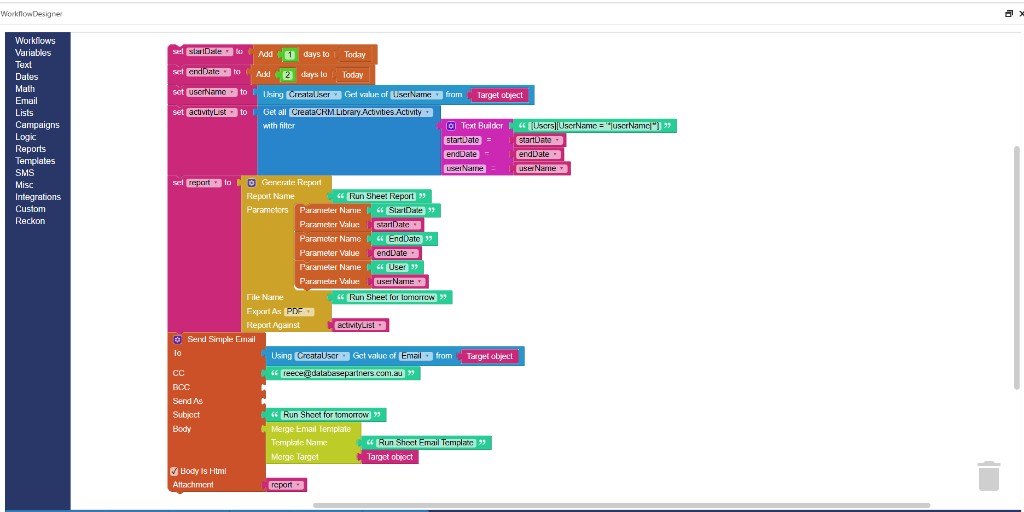
Need something more specific? CreataCRM's visual Workflow Designer lets you create custom business processes by dragging and connecting blocks. Build workflows that match the way your business operates.
Connect blocks on a canvas to define the steps your process should follow.
Shape automations around how your team already works — not a fixed script.
Branch on status, fields and business rules so the right path runs every time.
Add email and text steps to a workflow. Messages from installed templates stay in review until you turn live sending on.
Assign follow-ups and keep CreataCRM records current without manual entry.
Produce supported report outputs and include them in automated delivery.
Store your workflow, turn it on when ready, and manage it alongside templates.
Start a workflow from a new record, a change in status, a matching condition, a schedule, or on demand when staff choose to run it.
Automatically start a process when a new customer, lead or other record is created.
Run a workflow when a field or status changes, such as a job being completed.
Automatically respond when records match business rules, such as an opportunity needing follow-up.
Run processes once or repeat them hourly, daily, weekly or monthly.
Allow staff to start a workflow manually when required.
Consistent processes free your team to focus on customers and growth instead of chasing the same follow-ups by hand.
Cut manual steps that slow teams down every day.
Acknowledge enquiries and updates promptly and consistently.
Surface stalled opportunities before they go cold.
Reminders and alerts run even when the day gets busy.
Notify the right people when jobs, payments or stock need attention.
Standardise how work moves through your business.
Discover how ready-made automations and custom workflows can save time across your business.
Website Leads
When someone asks for a demonstration, CreataCRM finds or creates their company and contact, opens a lead, and gives it to the salesperson you choose. That person gets a follow-up task for the same day and an in-app alert. A thank-you email is prepared for the enquirer, and the contact is tagged Product Demo so the campaign can be reported later. You choose the salesperson and who else should be told. The email stays in review until you turn on live sending.
Someone completes the product-demo form.
Demo enquiries become owned, tasked leads without re-typing website forms into the CRM.
Salesperson, notification role, and lead status (Open). No accounting connection. Customer email stays in review until live sending is on.
Website Leads
A general enquiry form creates or updates the company and contact, then opens a lead for the owner you name. Product-demo answers are skipped, so this form can sit beside Product Demo Request. The owner, or another person you name, receives a review task due today. The team role gets an in-app alert, an acknowledgement email is prepared, and the contact is tagged Website Enquiry. You can set the lead source and task priority during install. The email is not delivered until live sending is turned on.
Someone completes the general enquiry form, and the interest is blank or is not “Product demonstration”.
General enquiries do not sit in a shared inbox with no owner.
Enquiry owner and team role are required. Lead source defaults to Website. Priority defaults to Normal. Lead status is Open.
Lead Capture
When a trade-show form is submitted, CreataCRM finds or creates the company and contact, opens a lead, and assigns the salesperson you chose at install. It does not route by territory. A follow-up task is created, due the next day unless you change that, and the salesperson is alerted in CreataCRM. A welcome email names the event, and the contact is tagged Trade Show Lead. You only need the event name and the default salesperson. The email stays in review until live sending is switched on.
Someone completes the trade-show form.
Turn trade show enquiries into assigned, actionable sales leads without manually entering and following up every record.
Event name and salesperson are required. Lead source defaults to Trade Show. Follow-up delay defaults to 1 day. Priority defaults to Normal. Lead status is Open. Territory routing is not used. Email stays in review until live sending is on.
Sales Automation
Moving an opportunity to the stage you call Won starts a handover. A thank-you email to the primary contact is prepared, and you can switch that off. A high-priority task asks a named person to review scope, dates, and the next operational step. The operations role gets an in-app alert, and the contact and company are tagged Won Customer, or another tag you name. You must choose the won stage, who is told, and who owns the task. The email is not sent until live sending is on.
An opportunity’s stage changes to the Won stage chosen at install.
A won deal is celebrated with the customer and given to the people who deliver it.
Won stage, operations role, and handover-task owner are required. The thank-you email can be turned off.
Sales Automation
Creating a lead assigns your default salesperson only when nobody already owns it. A follow-up task is then created for the owner, due today unless you change the delay. The owner is alerted, and an introduction email is prepared in that person’s name. Both the alert and the email are on by default and can be turned off at install. An existing owner is left as they are. The email remains in review until live sending is enabled.
A lead is created.
New leads are not left unowned, and the customer can hear who will help them.
Default salesperson is required. An optional lead stage can be applied. Email and owner alert can be turned off.
Sales Automation
If an opportunity’s value changes and meets or passes your threshold, CreataCRM tags it High Value Opportunity, or a name you choose. A review task is created for the person you name, and the sales manager role receives an in-app alert. The default threshold is 50,000 and the task is due the same day. Nothing is emailed to the customer. You choose the amount, the manager role, and the task owner during install.
The opportunity value changes and is at or above the amount you set. The default is 50,000.
Large deals are visible to a manager instead of sitting only with the owner.
Threshold, manager role, and task owner are required. No customer email.
Sales Automation
Every morning CreataCRM looks for open opportunities that have stayed in the current status longer than the limit you set, 30 days by default. The owner receives a high-priority follow-up task and an in-app alert. A manager alert is available but off unless you enable it and choose the role. The check repeats, but the same opportunity is not tasked again while that same stall remains. There is no customer email. You only have to set how many days count as stalled.
Each morning at 7:00 Sydney time, for open opportunities whose current status has lasted longer than the number of days you set. The default is 30.
Quiet pipeline is brought back to the owner before it is forgotten.
Day count is required. The manager alert is optional and, if used, needs a role. Each matching opportunity is raised once for that situation, not every morning.
Sales Automation
Moving an opportunity to the stage you call Lost tags it and creates a revisit task for the owner, due 30 days later unless you choose another delay or another person. The owner is alerted in CreataCRM. A thank-you that leaves the door open can be prepared for the primary contact, but that email is off by default. You choose the lost stage and the wait. Live sending still has to be turned on before any email goes out.
An opportunity’s stage changes to the Lost stage chosen at install.
Lost work is revisited later without someone remembering to diary it.
Lost stage and delay are required. The customer email is optional and off unless you turn it on.
Customer Management
Creating a customer adds one follow-up: a normal-priority task called Welcome new customer, assigned to the owner and due tomorrow. It does not send an email, tag the customer, or alert anyone else, and install does not ask any questions. Use it when all you want is a prompt to make contact. It runs once for that new customer. For a welcome email, an account manager, and a New Customer tag, use New Customer Welcome and Onboarding instead. That fuller template is a separate install, not a setting on this one.
A customer record is created.
A new customer is not added and then forgotten.
None. There is no email, tag, or staff alert.
Customer & Account Management
Creating a customer assigns your account manager only when the record has no owner. A welcome task is created for that owner, due today unless you change it. A welcome email is prepared, the account manager is alerted unless you turn that off, and the contact and company are tagged New Customer. An owner who is already set is left alone. The email stays in review until live sending is on. This is separate from Customer Onboarding Follow-up, which later chases customers who are still not onboarded.
A customer record is created.
New customers get an owner, a first task, and a welcome, instead of a bare record.
Account manager is required. The alert can be turned off. No accounting connection.
Customer & Account Management
Once a week, CreataCRM looks at customers synchronised from Xero, Reckon, or MYOB who have purchased before but not in the period you set, 12 months by default. It creates a win-back task, alerts the person you name, and tags the linked contact and company as Lapsed Customer. A check-in email can be prepared, but it is off unless you turn it on. There is no version for customers that exist only in CreataCRM. Each match is handled once for that situation. Live sending is still required before the email is delivered.
Monday at 8:00 Sydney time, for Xero, Reckon, or MYOB customers who have purchased before but not within the number of months you set. The default is 12. There is no CreataCRM-only version.
Quiet accounts are listed for a conversation instead of being noticed only when someone runs a report.
Requires Xero, Reckon, or MYOB customer data already in CreataCRM. Choose the provider, the months, and the task owner. The email is optional.
Customer & Account Management
On the first of the month, CreataCRM finds accounting customers whose purchases over the last 12 months, or another period you set, are above your threshold. The default is 10,000. It tags the linked contact and company, assigns the account manager you choose, alerts the sales manager role, and creates a review task. Nothing is emailed to the customer. It uses Xero, Reckon, or MYOB data already in CreataCRM, and each customer is handled once for that result. You set the amount, the period, and the two people involved.
The first of each month at 8:00 Sydney time, for Xero, Reckon, or MYOB customers whose invoice-line total over the chosen period is above the threshold. Defaults are 12 months and 10,000. No customer email.
The best accounts are tagged and given an owner before they are treated like everyone else.
Xero, Reckon, or MYOB only. Threshold, period, account manager, and sales manager role are required.
Customer & Account Management
Every morning CreataCRM looks for active customers created more than seven days ago, or another limit you set, whose status is not the finished status you name. The owner gets a task to complete onboarding, and the account manager is alerted unless you turn that off. No email goes to the customer. The same customer is not tasked again while they remain in that overdue state. Use New Customer Welcome and Onboarding for the day they are created, and this template for the ones that stall.
Each morning at 8:00 Sydney time, for active customers created more than the chosen number of days ago whose status is not the completed status. Defaults are 7 days and status “Onboarded”.
Onboarding does not depend on someone remembering who is still unfinished.
Day count and the status that means finished. No customer email. Each customer is raised once for that overdue state.
Customer & Account Management
Each morning CreataCRM finds customers whose create-date anniversary is today, skipping anyone younger than the age you set, one year by default. A thank-you email is prepared and the account manager is alerted. Both are on unless you turn them off. A follow-up task can be added, but it is off by default. The date is when the customer record was created, not their first purchase. The email stays in review until live sending is on, and each anniversary is handled once.
Each morning at 8:00 Sydney time, when that anniversary is today and the customer is older than the minimum you set. The default is 365 days.
Long-standing customers get a thank-you without a manual calendar.
Minimum age is required. The email and alert can be turned off. The task is optional. No accounting connection. This uses the customer’s create date, not the first invoice date.
Jobs and Service
Changing a job to the completed status you select prepares one email to the primary contact, asking for feedback on that job number and name. It does not create a task, send a text, alert the office, or tag the job. The email is recorded only until live sending is turned on. If you also want an accounts task and a staff alert, install Job Completed — Customer and Accounts Follow-up instead of, or as well as, this one.
The job status changes to the completed status you select.
Finished work gets a feedback request without a separate mail-out.
Completed status is required. There is no task, text, or staff alert. For invoicing follow-up, use the fuller job-completed template.
Jobs and Service
Setting a job to the completed status you choose prepares a confirmation email, on by default, and can prepare a text, which is off by default. An accounts user receives a task to review the job for invoicing, due the next day unless you change that, and the accounts role is alerted. You can also alert the job owner and tag the job, both off until you enable them. You pick the finished status and the accounts people at install. Customer email and text stay in review until live sending is on.
The job status changes to the completed status you select.
Completion, the customer message, and the invoice check happen from the status change.
Completed status, accounts role, and task owner are required. Email, text, owner alert, and tag are each optional.
Jobs and Service
When the assigned-staff field changes and someone is on the job, that person gets an in-app alert and a task for the work. The task is due on the scheduled start, or today if no start is set. A confirmation email is prepared for the primary contact. The alert and email are on by default. A Scheduled Job tag is available but off. You can point the trigger at a different staff field. The email is not delivered until live sending is enabled.
The staff field you choose changes and a person is set. The default field is the primary assigned user.
A new assignment reaches the technician and the customer without a manual forward.
Choose the staff field if it is not the primary assigned user. Email, alert, and tag can be changed.
Jobs and Service
Changing a job to the started status you select alerts the office role and prepares a text telling the primary contact that work has begun. Both are on by default. An email and a Job Started tag can be added, but they are off until you enable them. No task is created. You choose the status and the office role. The text and email stay in review until live sending is turned on.
The job status changes to the in-progress status you select.
The office and the customer know the visit has started without a phone call back to base.
In-progress status and office role are required. There is no task.
Jobs and Service
Setting a job to the waiting status you choose prepares an email asking the primary contact for more information, and can prepare a short text, which is off by default. The message is general: CreataCRM has no separate waiting-reason field, so the detail needs to be in the job notes first. A follow-up task is created for the owner, due two days later unless you change the delay or the person, and the owner or a chosen role is alerted. Live sending is required before the customer receives the email or text.
The job status changes to the waiting status you select.
A job waiting on the customer is both explained to them and diarised internally.
Waiting status is required. The email does not quote a separate reason field. Put the detail in the job notes before changing status. Email and text can be switched.
Jobs and Service
Every morning CreataCRM looks for jobs past the scheduled finish, or another date field you name, and skips the completed and closed statuses you select. The owner gets a review task and an in-app alert. A manager role is alerted as well unless you turn that off. An Overdue Job tag is optional and off by default. The customer is not emailed. The same job is not raised again while it stays in that overdue state. You choose the two statuses to ignore and who should own the task.
Each morning at 8:00 Sydney time, for jobs past the date field you choose, excluding the completed status and the closed status you select. The default date is the scheduled finish.
Late jobs are escalated from the schedule instead of from a manual board check.
Both statuses to exclude are required. There is no customer email. Each job is raised once for that overdue state.
Accounts Receivable
Every morning CreataCRM finds invoices that are at least seven days overdue, or another limit you set, and still have an amount due. A reminder email is prepared, the accounts role is alerted, and a follow-up task is created for the person you name. A text can be added, but it is off by default. You choose CreataCRM, Xero, Reckon, or MYOB, and only that version is installed. The same invoice is not reminded again while it stays in that state. Email and text stay in review until live sending is on.
Each morning at 8:00 Sydney time, for invoices overdue by at least the number of days you set, with an amount due. The default is 7 days.
Overdue invoices get a customer reminder and an internal chase without a manual debtor run.
Provider, day count, accounts role, and task owner. Each invoice is handled once for that overdue state.
Accounts Receivable
Every morning CreataCRM finds customers with at least two overdue invoices, or a higher number you set. Accounts are alerted, a collection task is created, and the contact and company are tagged Multiple Overdue Invoices. No email or text is sent to the customer. It works with CreataCRM, Xero, Reckon, or MYOB data already synchronised, and only the provider you choose is installed. The same customer is not tasked again while that overdue count still matches. You name the accounts role and the task owner.
Each morning at 8:00 Sydney time, when the customer’s overdue invoice count reaches the number you set. The default is 2.
A customer with several overdue invoices is treated as one collection problem, not a pile of single reminders.
Provider, minimum count, accounts role, and task owner. No customer email. Each customer is handled once for that count.
Accounts Receivable
Every morning CreataCRM finds customers whose outstanding balance is over the amount you set, 5,000 by default. The credit manager role is alerted, a review task is created at high priority unless you change it, and the contact and company are tagged High Balance. The customer is not emailed. Choose CreataCRM, Xero, Reckon, or MYOB at install. This is the balance check on its own. Credit Hold Alert adds a second rule for how old the oldest overdue invoice is. Each customer is handled once while the balance stays over the line.
Each morning at 8:00 Sydney time, when the outstanding balance is above the threshold. The default is 5,000.
Large balances are reviewed even when they are not yet a credit-hold case.
Provider, threshold, credit manager role, and task owner. No customer email.
Accounts Receivable
Marking an invoice paid removes the Overdue tag from the contact and company, completes open tasks whose subject contains “overdue”, and alerts the owner. Those three steps are on by default and can be turned off or renamed. A thank-you email can be prepared, but it is off unless you enable it. You choose CreataCRM, Xero, Reckon, or MYOB, and only that version is installed. The email stays in review until live sending is on. It does not receipt the payment. It reacts after the invoice is already marked paid.
The invoice status changes to paid.
Payment clears the overdue tag and the collection tasks instead of leaving them open.
Provider is required. Tag removal, task completion, the owner alert, and the thank-you can each be changed. The tag name does not have to be one created by another accounts template.
Accounts Receivable
Every morning CreataCRM finds customers whose balance is over the amount you set and whose oldest overdue invoice is at least the age you set. The defaults are 1,000 and 60 days, and both rules must match. It tags the contact and company Credit Hold, alerts the credit manager, and creates a review task. No email goes to the customer. Choose CreataCRM, Xero, Reckon, or MYOB. The same customer is not raised again while both rules still match. This is stricter than High Outstanding Balance, which looks at the amount only.
Each morning at 8:00 Sydney time, when the outstanding balance is over the amount you set and the oldest overdue invoice is at least the age you set. Defaults are 1,000 and 60 days. Both must be true.
Credit risk is raised from two rules together, not from a balance or a single late invoice alone.
Provider, both thresholds, credit manager role, and task owner. No customer email. Each customer is handled once for that result.
Inventory and Purchasing
Every morning CreataCRM finds active products in its own inventory whose available stock is below the quantity you enter, 10 by default. It creates a review task and alerts the role you choose. It does not read a reorder level from MYOB, Reckon, or Xero. Use Low Stock Alert — Inventory Provider for those. Inactive products stay out unless you include them. The same product is not tasked again while it remains under that level. You set the quantity, the role, and the task owner. No customer message is sent.
Each morning at 7:00, for active CreataCRM products under that quantity. The default quantity is 10. Inactive products are excluded unless you include them.
CreataCRM stock is checked against a number you choose, because these products do not use a live reorder-quantity field.
CreataCRM inventory only. For MYOB or Reckon reorder levels, use Low Stock Alert — Inventory Provider. Quantity, role, and task owner are required.
Inventory and Purchasing
Every morning CreataCRM looks at the selected inventory provider for products whose suggested order quantity is above zero. The suggestion uses recent usage and the supplier lead time you enter, 90 days and 14 days by default. A high-priority task asks purchasing to review that quantity, and the purchasing role is alerted. The task includes what is available, what is on order, and the projected stock when a delivery would arrive. You choose the provider, the lead time, and who reviews it. The same product is not raised again while that suggestion still stands. Nothing is ordered automatically.
Each morning at 7:00, for the selected provider, when the suggested order quantity is greater than zero. Usage over the chosen period and supplier lead time are part of that calculation. Defaults are 90 days of usage and 14 days of lead time.
Buying is prompted with a quantity, not only a low-stock warning.
Provider, lead time, role, and task owner. MYOB and Xero have no native lead-time field, so the days you enter are used.
Inventory and Purchasing
Every morning CreataCRM checks assemblies in CreataCRM, MYOB, or Reckon inventory and finds those with a component shortage or no remaining build capacity. It creates a review task and alerts the role you choose. Xero cannot be selected, because those bills of materials are not synchronised. You pick the provider, the role, and the task owner. The same assembly is not raised again while the shortage remains. The template does not create a purchase order or change the bill of materials.
Each morning at 7:00, for CreataCRM, MYOB, or Reckon assemblies with a component shortage or no build capacity. Xero is not available.
A build is flagged before someone discovers a missing component on the floor.
Provider is CreataCRM, MYOB, or Reckon. Role and task owner are required. Xero has no bill-of-materials sync for this template.
Inventory and Purchasing
Every morning CreataCRM estimates stock at the moment a supplier delivery would arrive, using what is available, what is already on order, and usage over the lead time you set. If that projection is below the safety level, it creates a purchasing task and alerts the role you choose. Default lead time is 14 days and the usage window is 90 days. You select the inventory provider and who should review the result. The same product is not tasked again while that projection still fails. No purchase order is created for you.
Each morning at 7:00, when projected stock at delivery is below the safety level for the selected provider. Projection uses available stock, stock on order, and usage across the lead time. Defaults are 14 days of lead time and 90 days of usage.
A future stockout is visible before the shelf is actually empty.
Provider, lead time, role, and task owner. The lead time you enter is required where the provider has no lead-time field of its own.
Inventory and Purchasing
Every morning CreataCRM finds products that have had no outbound usage for 180 days, or another window you choose. By default it only includes products that still have stock on hand. A review task is created and the purchasing or warehouse role is alerted, with the on-hand quantity in the task. You choose the provider and the people. The same product is not raised again while it still has no usage in that window. The template does not discount, write off, or transfer the stock.
Each morning at 7:00, for products with no outbound usage in the lookback you set. The default is 180 days. By default only products with stock on hand are included.
Dormant stock is reviewed on a schedule instead of staying in the warehouse unnoticed.
Provider, lookback days, role, and task owner. The on-hand filter can be turned off.
Inventory and Purchasing
Every morning CreataCRM finds products that have stock available, have been used, and still have more days of cover than the limit you set. The default is 180 days, based on 90 days of usage. It creates a review task and alerts purchasing or warehouse. Products with no usage are excluded here. They belong in Slow Moving Stock. You choose the provider, the day limit, and who reviews the list. The same product is not raised again while it stays over that cover. Nothing is automatically returned or written off.
Each morning at 7:00, when days of stock remaining are above the threshold, and the product has stock available and some usage. The default threshold is 180 days, measured over 90 days of usage.
Excess cover is visible before more of the same product is bought.
Provider, day threshold, role, and task owner. Products with no usage are not treated as overstock by this template. Use Slow Moving Stock for those.
Inventory and Purchasing
Every morning CreataCRM checks synchronised stock for CreataCRM, MYOB, or Reckon and finds products under the reorder level. CreataCRM always uses a quantity you type, 10 by default. MYOB can use its minimum restock level and Reckon its reorder point, or you can override either with a fixed quantity. A review task is created and the purchasing or warehouse role is alerted. A Low Stock tag is optional and off by default. Xero cannot be selected. The same product is not tasked again while it stays under that level, and no purchase order is raised automatically.
Each morning at 7:00, for CreataCRM, MYOB, or Reckon, when available stock is below the reorder level. Xero is not supported. CreataCRM uses the quantity you enter, because it has no reorder-quantity field. MYOB can use its restock alert level and Reckon its reorder point, or you can type a quantity that overrides the provider.
Warehouse sees low stock from the system they already buy against, without a separate spreadsheet.
Provider, reorder source, role, and task owner. The quantity is required for CreataCRM and whenever you choose a fixed threshold.